You are now inside an isolated environment with all the necessary command-line tools installed.
Test that it works:
$ cowsay "Data engineering is awesome!"_______________________________< Data engineering is awesome! >-------------------------------\ ^__^\ (oo)\_______(__)\ )\/\||----w|||||
Mounting a Local Directory
To get data in and out of the container, mount a local directory:
$ docker run --rm-it-v"$(pwd)":/data lucascordova/dataeng
C:\> docker run --rm-it-v"%cd%":/data lucascordova/dataeng
PS C:\> docker run --rm -it -v ${PWD}:/data lucascordova/dataeng
The -v option maps your current directory to /data inside the container.
Exiting the Container
When you are done, exit the container by typing:
$ exit
The container is removed (due to --rm flag), but any files you saved to the mounted directory persist on your computer.
What Is the Command Line?
The Terminal
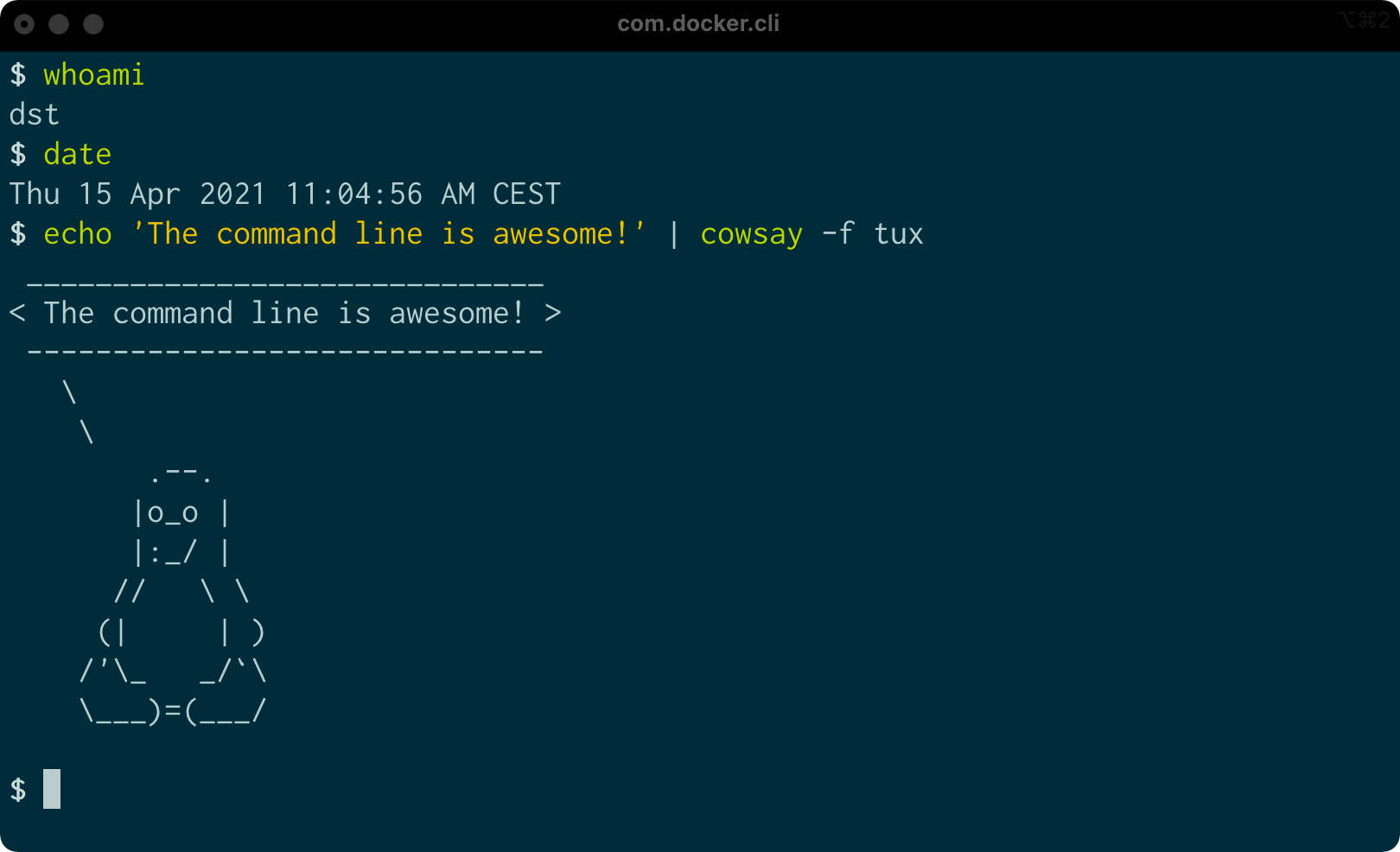
Command line on macOS
The terminal is the application where you type commands. It enables you to interact with the shell.
The Terminal on Linux
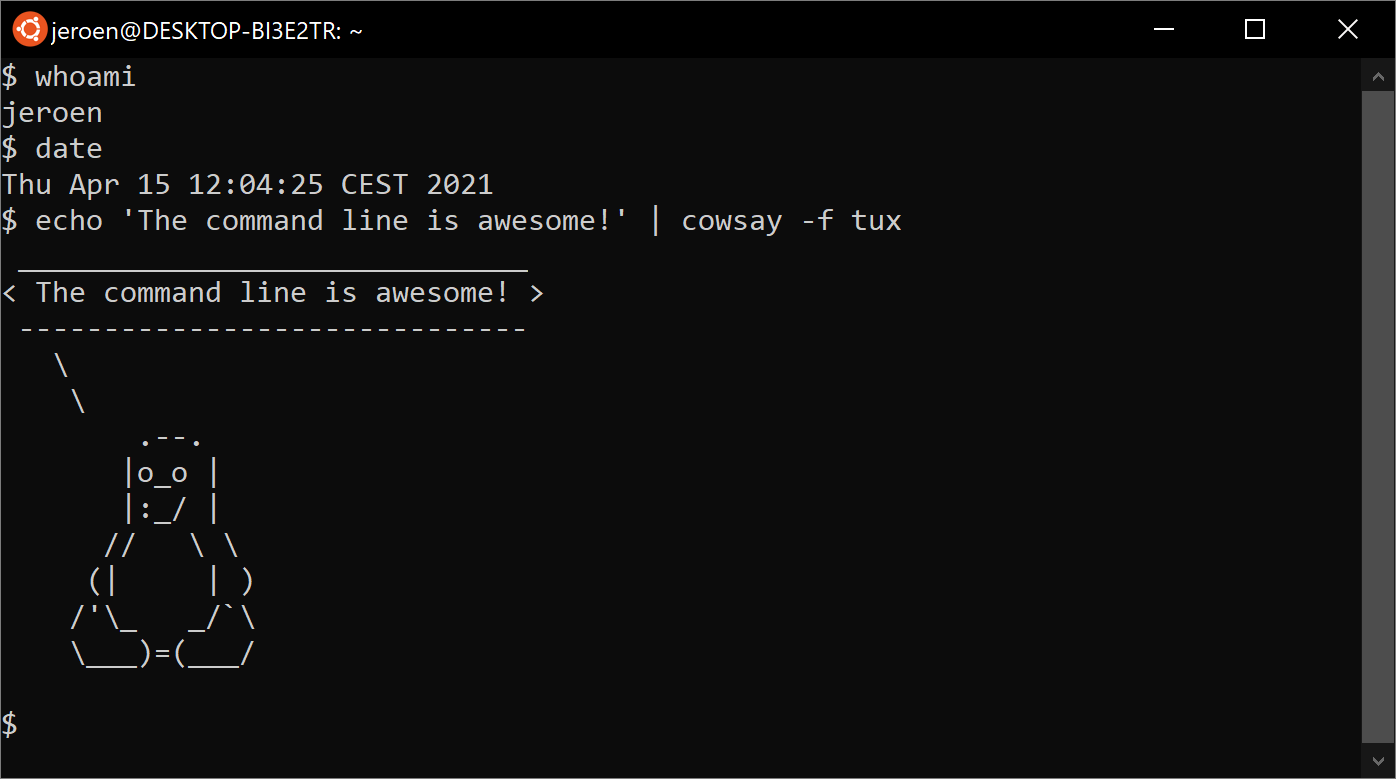
Command line on Ubuntu
Ubuntu is a distribution of GNU/Linux. The same commands work across different Unix-like systems.
The Four Layers
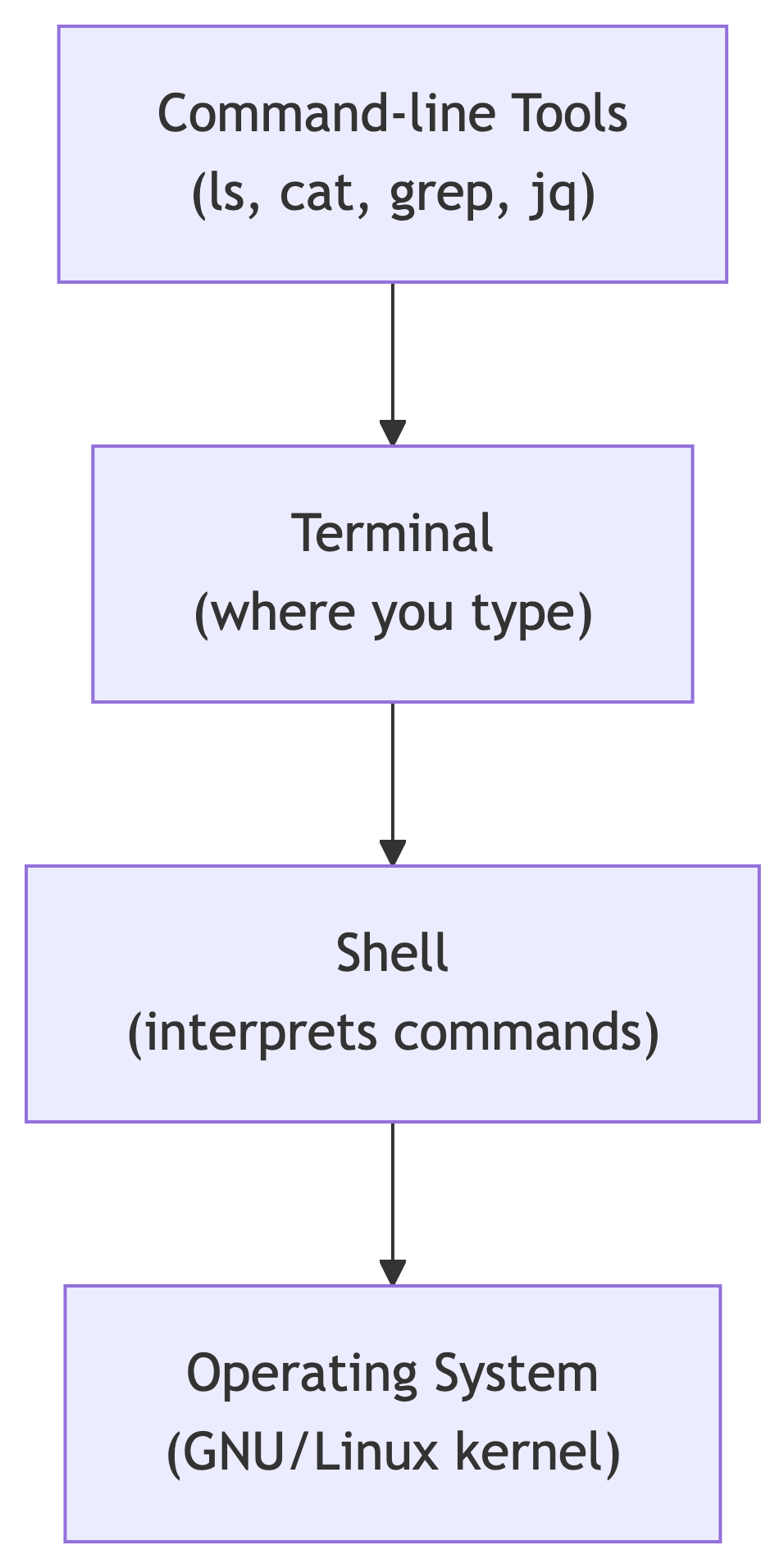
The environment consists of four layers:
Layer
Purpose
Command-line tools
Programs you execute
Terminal
Application for typing commands
Shell
Program that interprets commands (bash, zsh)
Operating system
Executes tools, manages hardware
Understanding the Prompt
When you see text like this in the book or slides:
$ seq 3123
The $ is the prompt (do not type it)
seq 3 is the command you type
1, 2, 3 is the output
The prompt may show additional information (username, directory, time), but we show only $ for simplicity.
Essential Unix Concepts
Executing Commands
Your First Commands
Try these commands in your terminal:
$ pwd/home/dst
The tool pwd outputs the name of your current directory.
$ cd /data/ch02$ pwd/data/ch02
The tool cd changes directories. Values after the command are called arguments or options.
Command Arguments and Options
Commands often take arguments and options:
$ head -n 3 movies.txtMatrixStar WarsHome Alone
This command has three arguments:
Argument
Type
Purpose
-n
Option (short form)
Specifies number of lines
3
Value
The number of lines to show
movies.txt
Filename
The file to read
The long form of -n is --lines.
Five Types of Command-Line Tools
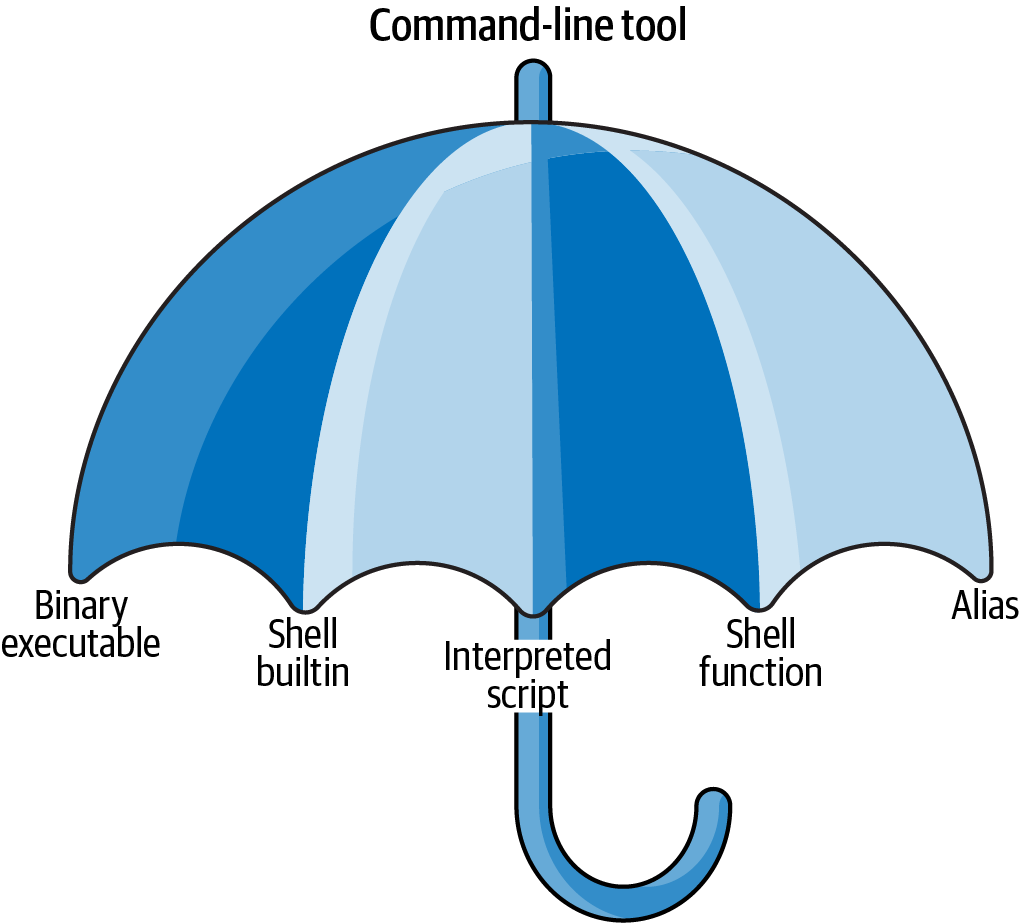
The Tool Umbrella
Command-line tool is an umbrella term for five types
Each command-line tool is one of five types:
Binary executable
Shell builtin
Interpreted script
Shell function
Alias
Binary Executables
Programs compiled from source code to machine code.
Created by compiling C, C++, Rust, Go, etc.
Cannot read the file in a text editor
Fast execution
Examples: ls, grep, cat
$ file /usr/bin/ls/usr/bin/ls: ELF 64-bit LSB pie executable...
Shell Builtins
Command-line tools provided by the shell itself.
Part of the shell (bash, zsh)
May differ between shells
Cannot be easily inspected
Examples: cd, pwd, echo
$ type cdcd is a shell builtin
Interpreted Scripts
Text files executed by an interpreter (Python, R, Bash).
#!/usr/bin/env pythondef factorial(x): result =1for i inrange(2, x +1): result *= ireturn resultif__name__=="__main__":import sys x =int(sys.argv[1])print(factorial(x))
Advantages: Readable, editable, portable
Shell Functions
Functions executed by the shell itself:
$ fac(){(echo 1;seq$1)|paste-s-d\*-|bc;}$ fac 5120
Similar to scripts but typically smaller
Defined in shell configuration (.bashrc, .zshrc)
Good for personal productivity shortcuts
Aliases
Macros that expand to longer commands:
$ alias l='ls --color -lhF --group-directories-first'$ alias les=less
Now typing l expands to the full ls command with options.
Save keystrokes for common commands
Fix common typos
Cannot take parameters (use functions for that)
Identifying Tool Types
Use the type command to identify what kind of tool you have:
$ type -a pwdpwd is a shell builtinpwd is /usr/bin/pwd$ type -a cdcd is a shell builtin$ type -a ll is an alias for ls --color-lhF--group-directories-first
Combining Tools
The Unix Philosophy
Most command-line tools follow the Unix philosophy:
Do one thing and do it well.
grep filters lines
wc counts lines, words, characters
sort sorts lines
head shows first lines
The power comes from combining these simple tools.
Standard Streams
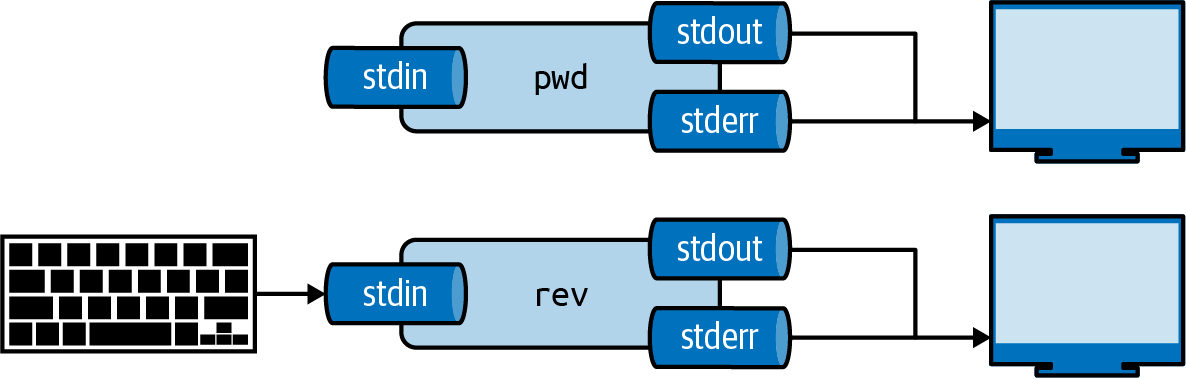
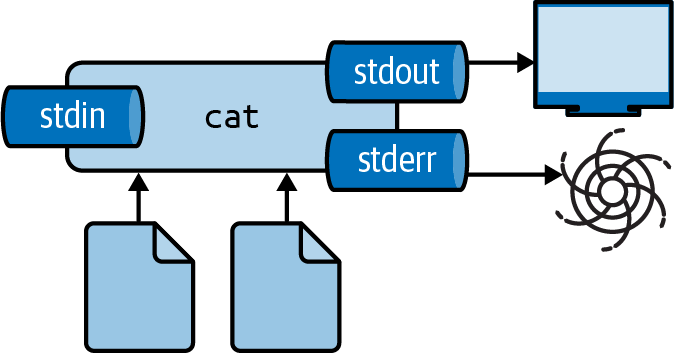
Every tool has three standard communication streams:
Standard input (stdin), standard output (stdout), and standard error (stderr)
Stream
Abbreviation
Default
Standard input
stdin
Keyboard
Standard output
stdout
Terminal
Standard error
stderr
Terminal
The Pipe Operator
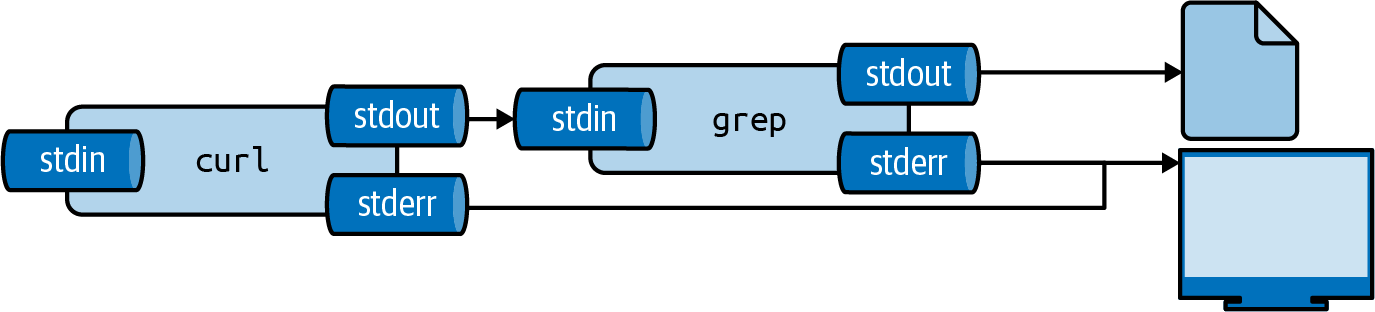
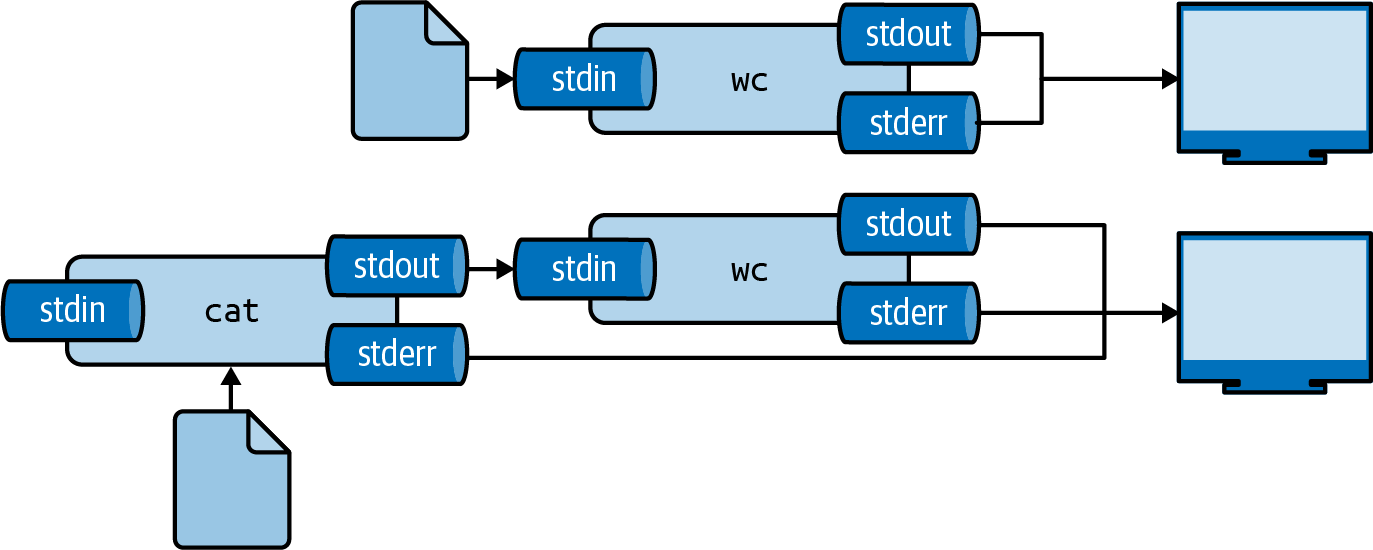
The pipe operator (|) connects stdout of one tool to stdin of another:
Piping output from curl to grep
$ curl -s"https://www.gutenberg.org/files/11/11-0.txt"|grep" CHAPTER"CHAPTER I. Down the Rabbit-HoleCHAPTER II. The Pool of TearsCHAPTER III. A Caucus-Race and a Long Tale...
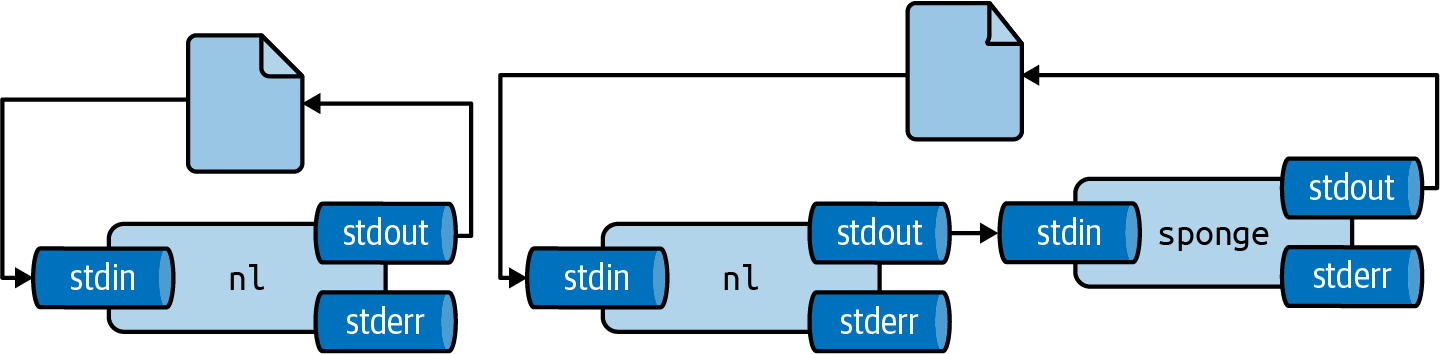
The output file is opened (and emptied) before reading starts.
Solutions:
Write to a different file, then rename
Use sponge to absorb all input before writing
sponge soaks up input before writing
$< dates.txt nl |sponge dates.txt # GOOD
Using tee for Intermediate Output
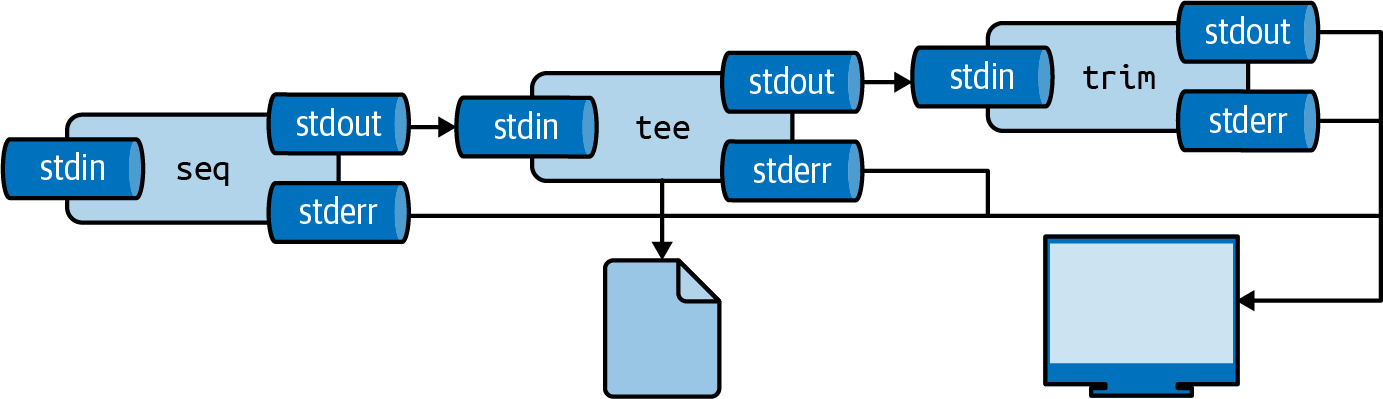
The tee command writes to both a file and stdout:
tee writes to file while passing data through
$ seq 0 2 100 |tee even.txt |head-502468
Useful for saving intermediate results while continuing a pipeline.
Working with Files and Directories
Listing Directory Contents
$ ls /data/ch10alice.txt count.py count.R Untitled1337.ipynb$ ls -lhF /data/ch10total 176K-rw-r--r-- 1 dst dst 164K Jun 29 14:25 alice.txt-rwxr-xr-x 1 dst dst 408 Jun 29 14:25 count.py*-rw-r--r-- 1 dst dst 460 Jun 29 14:25 count.R-rw-r--r-- 1 dst dst 1.7K Jun 29 14:25 Untitled1337.ipynb
Common options:
Option
Meaning
-l
Long format (permissions, size, date)
-h
Human-readable sizes
-F
Append indicators (/ for directories)
-a
Show hidden files
Creating and Navigating Directories
$ mkdir logs # Create directory$ mkdir -p data/raw/2024 # Create nested directories$ cd /data # Change to absolute path$ cd .. # Go up one level$ cd ~ # Go to home directory$ cd -# Go to previous directory
$ tldr tartarArchiving utility.-[c]reate an archive and write it to a [f]ile:tar cf target.tar file1 file2 file3- E[x]tract a (compressed)archive[f]ile:tar xf source.tar[.gz|.bz2|.xz]
Shows practical examples instead of exhaustive documentation.
Shell Builtins Help
For shell builtins like cd, check the shell manual:
$ man zshbuiltins # for zsh$ man bash # for bash (search for the builtin)
Or use the help command (in bash):
$ help cd
Summary
Key Takeaways
What We Learned
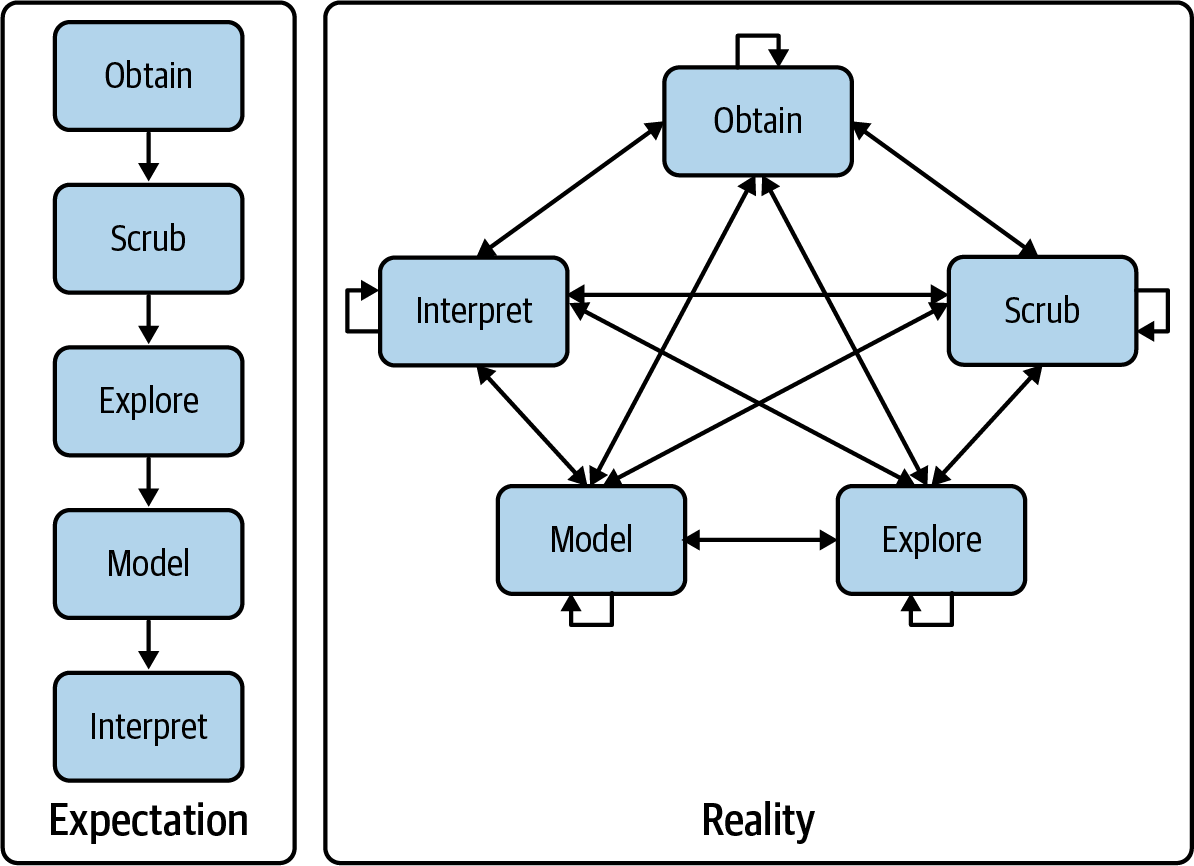
OSEMN Model: Obtain, Scrub, Explore, Model, iNterpret - data science is iterative
Command Line Advantages: Agile, augmenting, scalable, extensible, ubiquitous
Docker Setup: Use lucascordova/dataeng for a consistent environment