Lecture 06-2: Command Line Skills for Data Detectives
DATA 503: Fundamentals of Data Engineering
February 25, 2026
Quick Review: Navigation Essentials
Last Time: The Big Ideas
Key takeaways from Lecture 06-1:
| Concept | What It Means |
|---|---|
| Shell | The program interpreting your commands (bash, zsh) |
| Terminal | The window you type in |
| Docker | Portable, consistent environment for everyone |
Pipes (\|) |
Connect output of one command to input of another |
Redirection (>, >>) |
Send output to a file instead of the screen |
| OSEMN | Obtain, Scrub, Explore, Model, iNterpret |
Today we go deeper on navigation and learn the text-processing commands you need for the Command Line Mystery homework.
Fire Up Your Docker Container
Open your terminal and start the course container:
Mac/Linux:
Windows (PowerShell):
Verify you are in:
You should see you are the dst user at /home/dst.
The Filesystem: Your Map
The Directory Tree
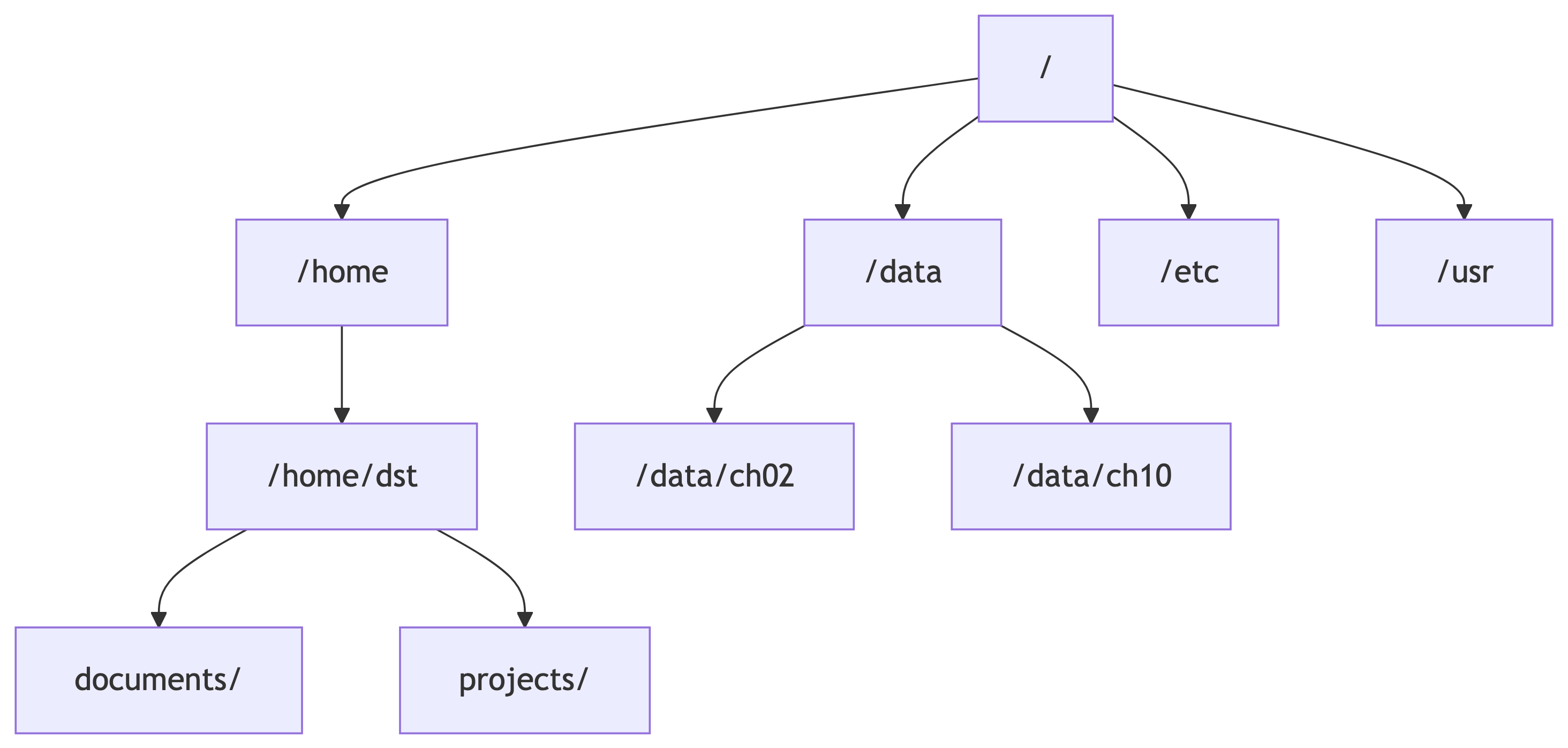
Every Unix system is a tree of directories (folders) starting from the root /:
/is the root – the top of everything/home/dstis your home directory (also called~)/datais where we mounted our local files
Where Am I? pwd
pwd = Print Working Directory. It tells you your current location as an absolute path:
Think of it like GPS for your terminal. When you are lost, pwd is your friend.
What Is Here? ls
ls lists what is in the current directory:
Common options:
| Option | What It Shows |
|---|---|
-l |
Long format (one file per line with details) |
-a |
All files including hidden (dotfiles) |
-h |
Human-readable sizes (KB, MB, GB) |
-F |
Append / to directories, * to executables |
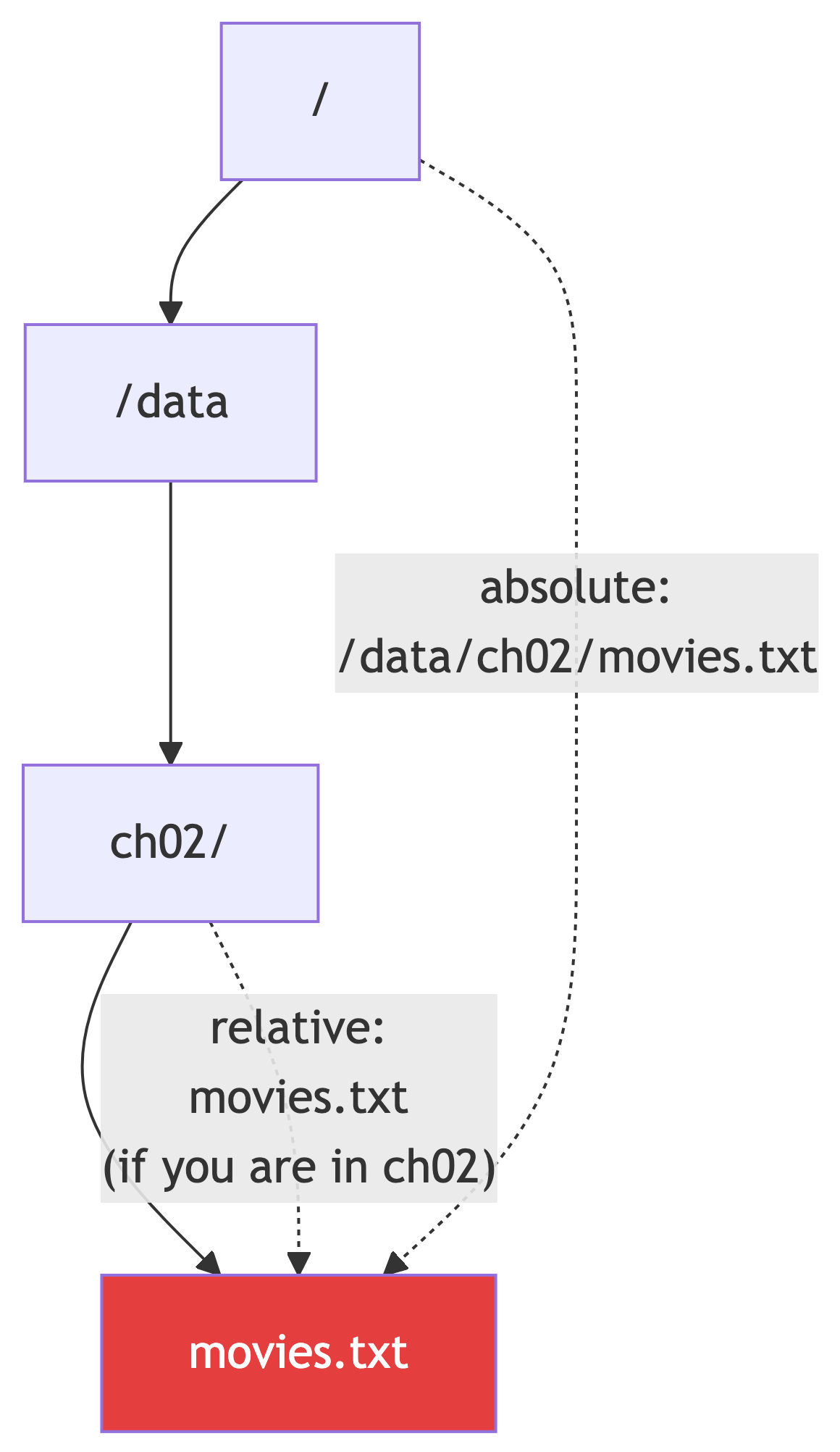
Absolute vs Relative Paths
Navigating with cd
cd = Change Directory. The most-used command in your terminal life:
Visual: Moving Around
Starting at /home/dst:
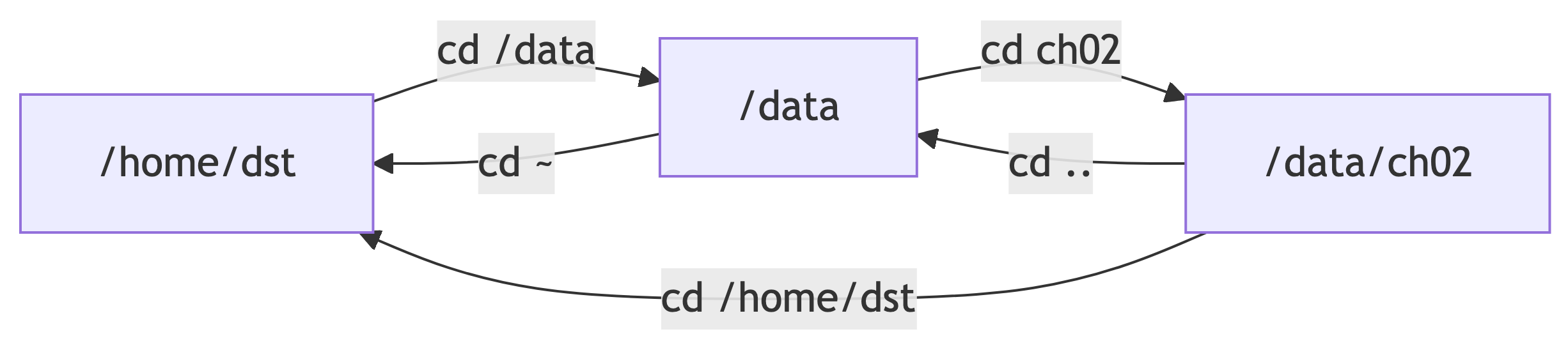
The .. always means “one level up.” You can chain them: ../../ means “two levels up.”
Special Directory Symbols
| Symbol | Meaning | Example |
|---|---|---|
/ |
Root directory | cd / |
~ |
Home directory | cd ~ or just cd |
. |
Current directory | ls . (same as ls) |
.. |
Parent directory | cd .. |
- |
Previous directory | cd - (toggle back) |
These work everywhere – in cd, ls, cat, cp, mv, any command that takes a path.
Knowledge Check 1
You are currently in /data/ch02. What is the absolute path you end up at after running these commands?
Knowledge Check 2
You are in /home/dst/projects. Which of these commands will list the files in /data?
ls datals /datals ../../dataBoth B and C
Creating and Removing Directories
The -p flag on mkdir creates all parent directories as needed. Without it, mkdir a/b/c fails if a/b does not exist.
Hands-On Setup: Practice Dataset
Find Your Book Data
Last week you downloaded the data from the Data Science at the Command Line book. It should already be inside your /data directory. Let us find it:
Depending on how you unzipped last week, your chapter directories might be in different places:
Use ls to poke around and find where ch02 lives. Once you find it, cd into it:
You should see files like movies.txt, dates.txt, and other text files.
Verify Your Setup
If you see a list of movies, you are good. If you get “No such file or directory,” you are in the wrong place. Use pwd to check where you are, then ls to look around.
This is your first real navigation exercise. Finding files by exploring directory structures is exactly what you will do in the Command Line Mystery homework.
Grab a Larger Dataset
The book data is great for small examples, but we also want a real-world dataset. Let us download an Apache web server access log using wget:
That is it. One command, one file. wget saves the file using the name from the URL (apache_logs) by default.
wget – Download Files from the Web
wget is a command-line tool for downloading files. It is simpler than curl for straightforward downloads:
Common options:
| Flag | Meaning |
|---|---|
-O filename |
Save as a specific filename (capital O) |
-q |
Quiet mode (no progress output) |
-P dir/ |
Save to a specific directory |
--no-check-certificate |
Skip SSL verification (use with caution) |
wget vs curl
Both download files, but they have different strengths:
| Feature | wget |
curl |
|---|---|---|
| Default behavior | Saves to file | Prints to stdout |
| Recursive downloads | Yes (-r) |
No |
| Resume interrupted downloads | Yes (-c) |
Yes (-C -) |
| API requests (POST, headers) | Limited | Full support |
| Availability | Linux/Docker (common) | macOS/Linux (universal) |
Rule of thumb: Use wget when you just need to download a file. Use curl when you need to interact with an API or need fine-grained control over the request.
Rename for Convenience
The downloaded file is called apache_logs (no extension). Let us rename it so it is clear what it is:
Now you have a real Apache web server log file to explore. This is the kind of data you will encounter as data engineers.
Knowledge Check 3
What is the difference between these two commands?
Core Commands: Reading Files
cat – Print Entire File
cat dumps the whole file to your terminal. Fine for small files. For large files, it will flood your screen.
Use it to combine files too:
head and tail – Peek at Files
tail -n +2 is the classic trick to skip a header row in a CSV.
wc – Count Things
Quick sanity check: “How big is this file?”
less – Page Through Large Files
| Key | Action |
|---|---|
Space / f |
Next page |
b |
Previous page |
/pattern |
Search forward |
n |
Next search match |
q |
Quit |
Unlike cat, less does not load the entire file into memory. Use it for big files.
Knowledge Check 4
How would you print lines 20 through 25 of a file called data.txt?
Core Commands: Searching with grep
grep – Find Lines Matching a Pattern
grep is your search engine for files. It prints every line that matches your pattern:
Essential flags:
| Flag | Meaning |
|---|---|
-i |
Case-insensitive search |
-c |
Count matches (don’t print them) |
-n |
Show line numbers |
-v |
Invert: show lines that do NOT match |
-l |
Show only filenames that contain a match |
-r |
Search recursively through directories |
-w |
Match whole words only |
grep Context Flags
Sometimes you need to see what is around a match:
Think of it as: After, Before, Context.
grep with Pipes
The real power comes from chaining grep with other commands:
This counts how many 404 (Not Found) errors are in the log.
Show the first 5 lines that contain “404”.
Knowledge Check 5
Using the access.log file, write a command that counts how many requests came from the IP address 83.149.9.216.
Knowledge Check 6
How would you search for the word “CLUE” in a file called crimescene, but only show the matching lines?
Core Commands: Extracting with sed
sed – Stream Editor
sed processes text line by line. Most common use: print specific lines and find-and-replace.
Print a specific line:
Find and replace:
The s/pattern/replacement/ syntax is the substitution command.
sed in Practice
Remove blank lines from a file:
Delete lines containing a pattern:
Print only lines matching a pattern (like grep):
Why sed -n 'Np' Matters for the Mystery
In the Command Line Mystery, people have addresses like:
Annabel Church F 38 Buckingham Place, line 179To look up that address, you need line 179 of the street file:
This is faster than opening the whole file. You jump straight to the line you need.
Knowledge Check 7
A file called people has this entry:
Jeremy Bowers M 34 Dunstable Road, line 284Write the command to see what is on line 284 of streets/Dunstable_Road.
Core Commands: cut, sort, uniq
cut – Extract Columns
cut pulls out specific columns from structured text:
| Flag | Meaning |
|---|---|
-d |
Delimiter (comma, tab, space, etc.) |
-f |
Field number(s) to extract |
-c |
Character positions to extract |
sort – Sort Lines
uniq – Remove Adjacent Duplicates
uniq only removes consecutive duplicates, so you almost always use it with sort:
The Classic Pipeline: cut | sort | uniq -c | sort -rn
This is the “top N” pattern. Find the most frequent values:
This answers: “What are the top 10 IP addresses in the access log?”
The pipeline:
cutextracts the IP address (field 1)sortgroups identical IPs togetheruniq -ccounts consecutive duplicatessort -rnsorts by count, highest firsthead -10shows the top 10
Knowledge Check 8
Using the access.log, write a pipeline that finds the top 5 most requested URLs (URLs are typically the 7th field in a space-delimited Apache log).
Core Commands: awk
awk – The Swiss Army Knife
awk is a mini programming language for text processing. Basic use: print specific fields.
awk splits each line on whitespace by default. Use -F to change the delimiter.
awk with Conditions
Print only lines where a condition is true:
This prints the URL (field 7) for every line where the HTTP status code (field 9) is 404.
Count the number of successful (200) requests.
awk vs cut
| Feature | cut |
awk |
|---|---|---|
| Speed | Faster for simple extraction | Slightly slower |
| Delimiter | Single character only | Any pattern, regex |
| Conditions | None | Full programming logic |
| Multiple delimiters | No | Handles whitespace naturally |
| Math | No | Yes |
Rule of thumb: use cut for simple extraction, awk for anything more complex.
Knowledge Check 9
Using awk, print the IP address and status code (fields 1 and 9) from access.log for all lines where the status code is 500.
Pipes and Redirection Revisited
The Pipe | – Connecting Commands
The pipe takes stdout of one command and feeds it as stdin to the next:

Each command does one small job. Together they answer: “What are the top 5 URLs returning 404?”
Output Redirection
Overwrite (>):
Creates or overwrites the file.
Append (>>):
Adds to the end of the file.
Knowledge Check 10
Write a single pipeline that:
- Finds all lines containing “GET” in
access.log - Extracts just the URL (field 7)
- Counts how many unique URLs there are
Working with Archives
tar and zip – Packing and Unpacking
You will encounter compressed archives constantly as a data engineer:
zip/unzip:
tar (tape archive):
Think of tar flags as: extract, create, z for gzip, f for filename.
gunzip – Decompress Single Files
Knowledge Check 11
You downloaded a file called dataset.tar.gz. Write the command to extract it into a directory called mydata/.
Putting It All Together: Mystery Prep
The Command Line Mystery
Your homework involves solving a murder mystery using only command-line tools. Here is the workflow you will follow:
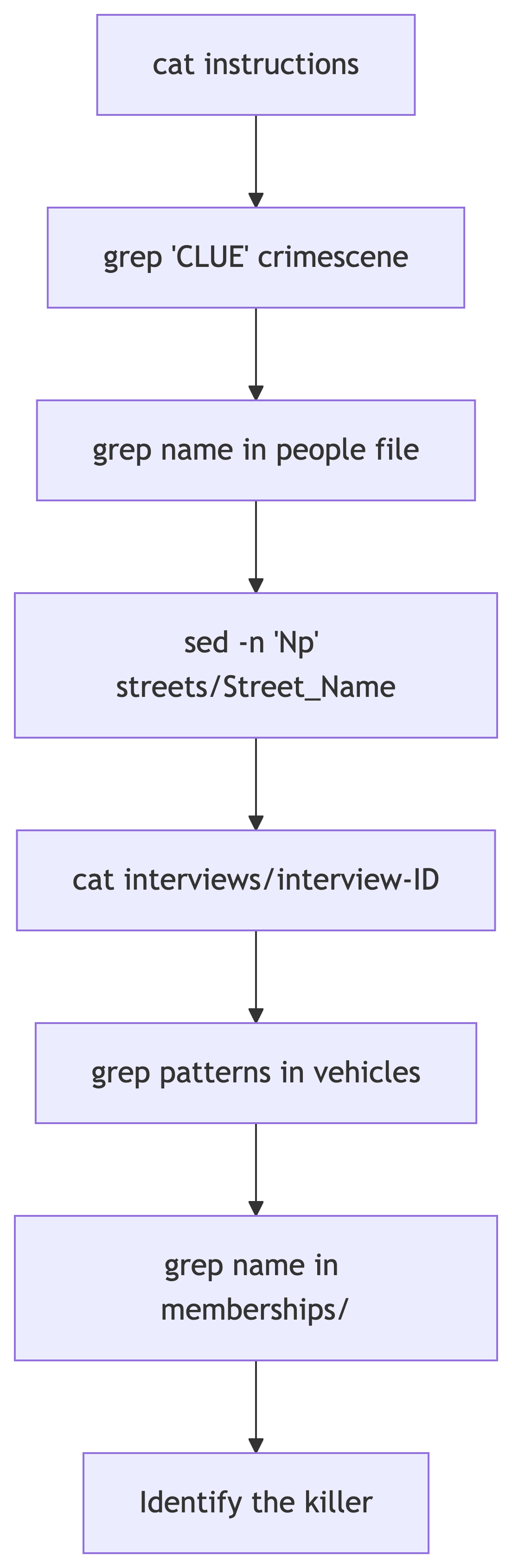
Commands You Will Need
| Command | Mystery Use |
|---|---|
cat |
Read instructions, interviews |
grep |
Search crimescene for CLUE, search people, vehicles, memberships |
grep -A |
Show context lines after a vehicle match |
sed -n 'Np' |
Look up a specific line in a street file |
wc -l |
Count matches |
Pipes (\|) |
Chain commands together |
cd |
Navigate into mystery/ and its subdirectories |
ls |
See what files and directories are available |
Practice: Mini Mystery
Let us simulate the mystery workflow with our book data. Navigate back to ch02:
Try these patterns:
Knowledge Check 12
You are in the mystery/ directory. The people file shows:
Joe Germuska M 36 Plainfield Street, line 275Write the commands to:
- Look up line 275 of
streets/Plainfield_Street - Read the interview file that is referenced there
Knowledge Check 13
A clue says the suspect drives a blue Honda with a plate starting with “L337”. The vehicles file has multi-line records. Write a command to find all matching vehicles and show 5 lines of context after each match.
Knowledge Check 14
You narrowed suspects to two people: Joe Germuska and Jeremy Bowers. You need to check if each person is a member of the “AAA” club. The membership file is at memberships/AAA. Write the commands.
Advanced Patterns
Wildcards in File Paths
The * matches any characters in filenames:
This is called globbing and it is handled by the shell, not by the command.
find – Locate Files
xargs – Build Commands from Input
When you need to run a command on each result from another command:
This counts lines in every .txt file found by find.
Knowledge Check 15
Write a single command that searches ALL files in the memberships/ directory for “Jeremy Bowers” and shows which files contain a match.
Command Cheat Sheet
Navigation
| Command | What It Does |
|---|---|
pwd |
Print current directory |
cd dir |
Change to directory |
cd .. |
Go up one level |
cd ~ or cd |
Go to home directory |
cd - |
Go to previous directory |
ls |
List directory contents |
ls -la |
List all files with details |
mkdir dir |
Create directory |
mkdir -p a/b/c |
Create nested directories |
File Reading
| Command | What It Does |
|---|---|
cat file |
Print entire file |
head -n N file |
First N lines |
tail -n N file |
Last N lines |
tail -n +N file |
Everything from line N onward |
less file |
Page through file |
wc -l file |
Count lines |
Searching and Extracting
| Command | What It Does |
|---|---|
grep "pattern" file |
Find matching lines |
grep -i |
Case-insensitive |
grep -c |
Count matches |
grep -n |
Show line numbers |
grep -v |
Invert (non-matching lines) |
grep -A N |
N lines after match |
grep -B N |
N lines before match |
grep -l |
Show filenames only |
grep -r |
Recursive search |
sed -n 'Np' |
Print line N |
sed 's/old/new/g' |
Find and replace |
Transforming
| Command | What It Does |
|---|---|
cut -d',' -f1 |
Extract field 1 (comma-delimited) |
sort |
Sort lines alphabetically |
sort -n |
Sort numerically |
sort -rn |
Sort numerically, descending |
sort -u |
Sort and deduplicate |
uniq |
Remove adjacent duplicates |
uniq -c |
Count duplicates |
awk '{print $1}' |
Print first field |
awk -F',' '{print $2}' |
Print field 2 (comma-delimited) |
Plumbing
| Syntax | What It Does |
|---|---|
cmd1 \| cmd2 |
Pipe output to next command |
cmd > file |
Write output to file (overwrite) |
cmd >> file |
Append output to file |
cmd 2>/dev/null |
Suppress error messages |
curl -L -o file URL |
Download a file |
unzip file.zip |
Extract zip archive |
tar xzf file.tar.gz |
Extract gzipped tar |
What Is Next
Your Mission
You now have all the commands you need to solve the Command Line Mystery.
Homework 6: Navigate to the mystery directory and follow the instructions. Use grep, sed, cat, pipes, and your navigation skills to find the killer.
The hints are there if you get stuck (cat ../hint1, cat ../hint2, etc.), but try to solve it on your own first. You have the skills.
Good luck, detective.
References
References
Janssens, J. (2021). Data Science at the Command Line (2nd ed.). O’Reilly Media. https://datascienceatthecommandline.com
Veltman, N. The Command Line Murders. https://github.com/veltman/clmystery
GNU Coreutils Manual. https://www.gnu.org/software/coreutils/manual
Robbins, A. (2002). sed & awk (2nd ed.). O’Reilly Media.
Shotts, W. (2019). The Linux Command Line (2nd ed.). No Starch Press.