
Lecture 08-2: Web Data Pipelines
DATA 503: Fundamentals of Data Engineering
March 4, 2026
The Big Picture
What Are We Building?
A Real-Time Data Pipeline
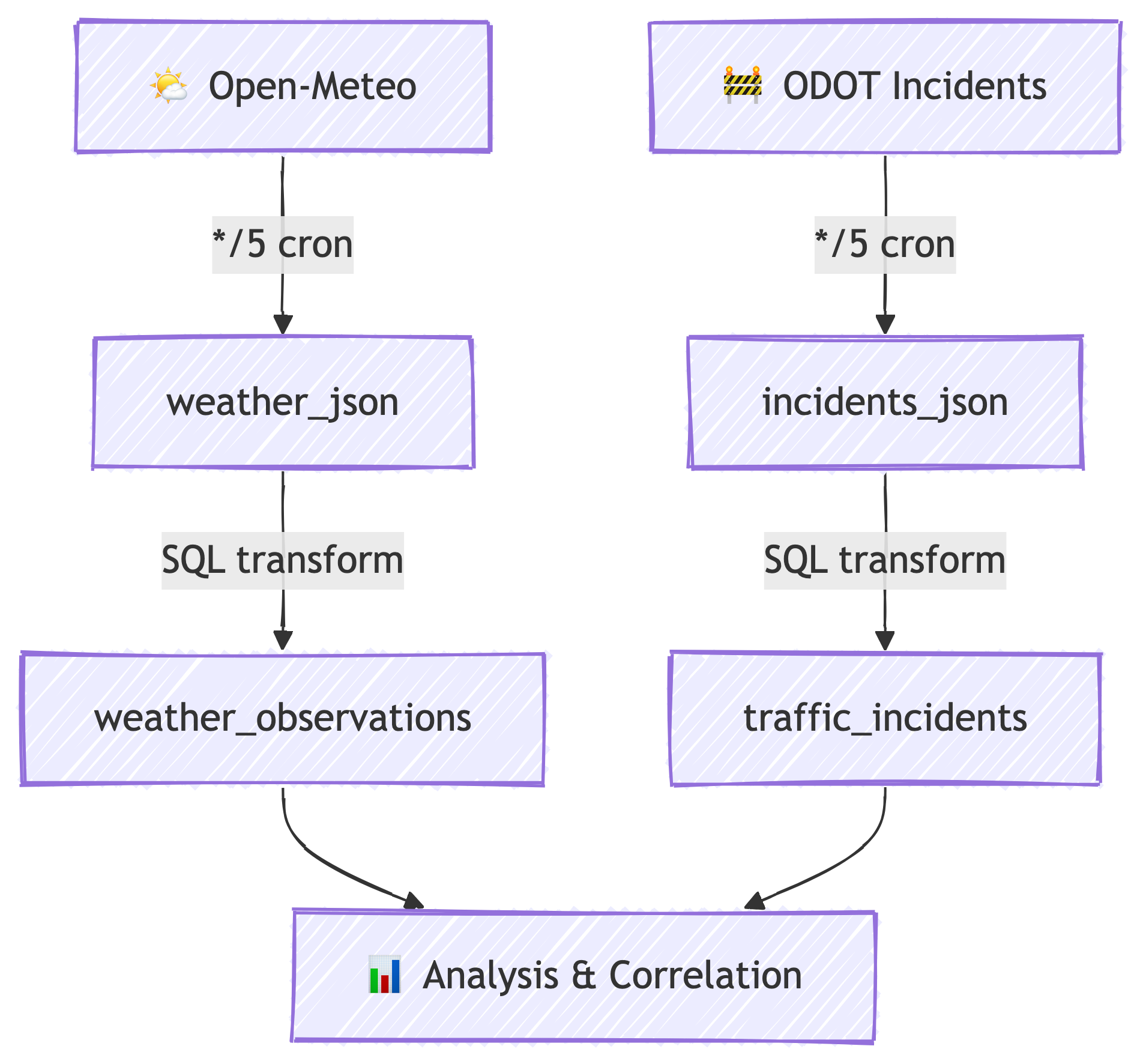
We are building a pipeline that continuously collects data from two public APIs, stores it in a cloud database, and transforms it into structured tables ready for analysis.
Every 5 minutes, our pipeline wakes up, fetches fresh data, and stores it. No human intervention required. You could go on vacation and come back to weeks of data. (Please do not go on vacation mid-semester.) 🏖️
The ELT Pattern
This pipeline follows the ELT pattern:
- Extract — pull raw data from web APIs
- Load — store the raw JSON directly into PostgreSQL
- Transform — convert raw JSON into structured, queryable tables
This is different from traditional ETL (Extract, Transform, Load), where you clean the data before storing it. With ELT, we store first and ask questions later. The database is powerful enough to handle the transformation. 💪
Why ELT Over ETL?
- Raw data is preserved — if your transformation has a bug, you still have the originals
- Schema flexibility — JSON can hold anything; you decide the structure later
- PostgreSQL is great at this — JSONB operators make transformation fast and expressive
- Decoupled stages — ingestion and transformation run independently
The Use Case
🌧️ Does Weather Cause Traffic Incidents?
Here is our research question:
Do weather conditions correlate with traffic incidents on Oregon highways?
We will collect:
- Weather data for Portland, OR (temperature, humidity, precipitation, wind, weather codes) from Open-Meteo
- Traffic incident data for all of Oregon (crashes, closures, hazards, construction) from ODOT TripCheck via ArcGIS
With continuous 5-minute polling, we can explore:
- Correlations — do more incidents happen during rain or high wind?
- Lag correlations — does a weather event precede a spike in incidents by 30-60 minutes?
- Time bucketing — what does the hourly or daily pattern look like?
This is real data engineering: collect, store, transform, analyze. Let’s build it. 🔧
Phase 1: Cloud Infrastructure
What is Railway?
Your Cloud Platform
Railway is a Platform-as-a-Service (PaaS) that makes deploying databases, Docker containers, and web services ridiculously easy.
Think of it as the friendly neighborhood version of AWS or Azure:
| Feature | AWS / Azure | Railway |
|---|---|---|
| Setup time | Hours to days | Minutes |
| Learning curve | Steep (IAM, VPCs, security groups…) | Gentle |
| Pricing | Complex (pay per everything) | Simple ($5/month hobby tier) |
| Target audience | Enterprise teams | Developers, students, small projects |
| Docker support | ✅ (ECS, EKS, ACI…) | ✅ (just paste an image name) |
| Managed Postgres | ✅ (RDS, Azure DB) | ✅ (one click) |
How We Will Use Railway
In this lab, Railway will host:
- A PostgreSQL database — our central data store
- Two Docker containers — one for each API, running on cron schedules
Railway handles networking, environment variables, scheduling, and deployment. We just configure and go.
Creating Your Railway Account
Step 1: Sign Up with GitHub
- Go to railway.app
- Click “Login” (top right)
- Choose “Login with GitHub”
- Authorize Railway to access your GitHub account
Using GitHub login is the easiest path — no separate password to remember, and it lets Railway deploy from your repos later if needed.
Step 2: Upgrade to the Hobby Plan
Railway’s free tier is very limited. The Hobby plan costs $5/month and gives you enough resources for this project.
- Go to your Railway dashboard
- Click your profile icon (bottom left) → “Account Settings”
- Under “Plan”, select “Hobby”
- Enter a credit card — you get a $5 credit each month
- Our usage will stay well within that $5
Yes, you need a credit card. No, you will not get a surprise bill. Railway caps hobby usage at $5 unless you explicitly upgrade. 💳
Step 3: Create a New Project
- From your Railway dashboard, click “New Project”
- Select “Empty Project”
- Railway creates a project with a default environment
Step 4: Rename Your Environment
The default environment name is not very descriptive. Let’s fix that.
- In your project, look at the top bar where it says the environment name
- Right-click or click the dropdown next to the environment name
- Choose “Rename”
- Name it something meaningful:
Traffic-Weather-Pipeline
Good naming is not optional. When you have five projects and twelve environments, “production” means nothing. “Traffic-Weather-Pipeline” tells you exactly what is running. 🏷️
Phase 2: Database Setup
Provisioning PostgreSQL
Step 1: Add a Postgres Service
- In your Traffic-Weather-Pipeline project, click “New”
- Select “Database”
- Choose “PostgreSQL”
- Railway provisions the database automatically — this takes about 30 seconds
You now have a fully managed PostgreSQL instance running in the cloud. No installation, no configuration files, no pg_hba.conf nightmares. 🎉
Step 2: Get Your Connection URL
- Click on the Postgres service in your project
- Open the “Variables” tab
- Find and copy the
DATABASE_PUBLIC_URL
It looks something like:
postgresql://postgres:AbCdEf123@roundhouse.proxy.rlwy.net:20848/railwayThis URL contains everything needed to connect: username, password, host, port, and database name. Guard it like a secret — anyone with this URL has full access to your database. 🔐
Step 3: Connect with Beekeeper Studio
Beekeeper Studio is great to use with Railway because you can import a database connection URL directly. pgAdmin works too, but we have to set up the connection manually.
IMPORTANT: make sure you note which database you’re connected to when switching between tasks. Often people find (or don’t find) what they are expecting to see and worry their databases are gone. You’re probably just connected to the wrong database server.
- Open Beekeeper Studio
- Click “New Connection”
- Choose PostgreSQL
- Click “Import from URL” and paste your
DATABASE_PUBLIC_URL - Click “Connect”
You should see an empty database. Perfect. We are about to fill it.
Creating Raw Storage Tables
The Staging Tables
Before we can ingest data, we need tables to receive it. These are append-only staging tables — every API response gets stored as a raw JSON blob with a timestamp.
Run this SQL in Beekeeper Studio.
Why JSONB?
PostgreSQL has two JSON types: JSON and JSONB.
JSONstores the raw text exactly as receivedJSONBstores it in a decomposed binary format
We use JSONB because:
- It is faster to query — PostgreSQL can index and search inside it
- It supports operators like
->,->>,@>, and? - It removes duplicate keys and does not preserve whitespace (we don’t care about formatting)
- It is the right choice for any serious JSON work in Postgres
Why Store Raw JSON at All?
Great question. Three reasons:
- Data preservation — if your transformation logic has a bug, the raw data is still there
- Schema evolution — APIs change; raw JSON captures whatever they send
- Debugging — when something looks wrong downstream, you can inspect the exact payload
This is the “L” in ELT. Load first, transform later.
Phase 3: Understanding the APIs
What is an API?
Application Programming Interface
An API is a structured way for programs to talk to each other. When you visit a website, your browser renders HTML for humans. When you call an API, you get structured data for programs.
The APIs we are using are REST APIs — they use standard HTTP requests (like typing a URL in your browser) and return data in JSON format.
- You send a request (a URL with parameters)
- The server processes it
- You get back structured data (JSON)
No API keys required for either of our data sources. They are free and public. 🎁
What is JSON?
JavaScript Object Notation
JSON (JavaScript Object Notation) is the most common format for data exchange on the web. If APIs are the highways of the internet, JSON is the cargo.
JSON has a few simple building blocks:
- Objects — key-value pairs wrapped in curly braces
{} - Arrays — ordered lists wrapped in square brackets
[] - Values — strings, numbers, booleans, null, objects, or arrays
Everything is text. Everything is human-readable. Everything nests. That is the beauty (and sometimes the pain) of JSON. 📦
API #1: Open-Meteo Weather
The URL
https://api.open-meteo.com/v1/forecast?latitude=45.52&longitude=-122.68&timezone=America%2FLos_Angeles¤t=temperature_2m,relative_humidity_2m,precipitation,weather_code,wind_speed_10m,wind_direction_10m&temperature_unit=fahrenheit&wind_speed_unit=mph&precipitation_unit=inchQuery Parameters Explained
https://api.open-meteo.com/v1/forecast?latitude=45.52&longitude=-122.68&timezone=America%2FLos_Angeles¤t=temperature_2m,relative_humidity_2m,precipitation,weather_code,wind_speed_10m,wind_direction_10m&temperature_unit=fahrenheit&wind_speed_unit=mph&precipitation_unit=inch| Parameter | Value | What It Does |
|---|---|---|
latitude |
45.52 |
Latitude for downtown Portland, OR |
longitude |
-122.68 |
Longitude for downtown Portland, OR |
current |
temperature_2m,... |
Which current-conditions fields to return |
temperature_unit |
fahrenheit |
Because this is America 🇺🇸 |
wind_speed_unit |
mph |
Miles per hour |
precipitation_unit |
inch |
Inches of precipitation |
The current parameter is a comma-separated list of weather variables. We are requesting:
temperature_2m— air temperature at 2 meters above groundrelative_humidity_2m— humidity percentageprecipitation— current precipitation amountweather_code— WMO weather condition code (0 = clear, 61 = rain, 71 = snow, etc.)wind_speed_10m— wind speed at 10 meters above groundwind_direction_10m— wind direction in degrees (0° = north, 90° = east, etc.)
Sample JSON Response
{
  "latitude": 45.528744,
  "longitude": -122.696236,
  "generationtime_ms": 0.13,
  "utc_offset_seconds": 0,
  "timezone": "GMT",
  "timezone_abbreviation": "GMT",
  "elevation": 31,
  "current_units": {
    "time": "iso8601",
    "interval": "seconds",
    "temperature_2m": "°F",
    "relative_humidity_2m": "%",
    "precipitation": "inch",
    "weather_code": "wmo code",
    "wind_speed_10m": "mp/h",
    "wind_direction_10m": "°"
  },
  "current": {
    "time": "2026-03-04T22:30",
    "interval": 900,
    "temperature_2m": 51.6,
    "relative_humidity_2m": 73,
    "precipitation": 0.114,
    "weather_code": 73,
    "wind_speed_10m": 10.5,
    "wind_direction_10m": 268
  }
}
Reading the Response
The important stuff lives inside the "current" object:
| Key | Example Value | Meaning |
|---|---|---|
time |
"2026-03-04T22:30" |
When this reading was taken (UTC) |
interval |
900 |
Update interval in seconds (15 min) |
temperature_2m |
51.6 |
Temperature in °F |
relative_humidity_2m |
73 |
Humidity as a percentage |
precipitation |
0.114 |
Current precipitation in inches |
weather_code |
73 |
WMO code (73 = moderate snow fall) |
wind_speed_10m |
10.5 |
Wind speed in mph |
wind_direction_10m |
268 |
Wind from the west (270° = due west) |
The current_units object tells you the unit for each field — useful for documentation and sanity-checking.
API #2: ODOT Traffic Incidents (ArcGIS)
The URL
https://services.arcgis.com/uUvqNMGPm7axC2dD/ArcGIS/rest/
  services/TripCheck_Incidents_Data_Upload_view/
  FeatureServer/0/query
  ?where=1%3D1
  &outFields=*
  &f=json
  &resultRecordCount=500
This is an ArcGIS Feature Service — a standard way to serve geospatial data. ODOT (Oregon Department of Transportation) publishes live traffic incident data through this service, which powers TripCheck.com.
Query Parameters Explained
| Parameter | Value | What It Does |
|---|---|---|
where |
1=1 |
SQL-style filter — 1=1 means “give me everything” |
outFields |
* |
Return all available fields (not just a subset) |
f |
json |
Return format — we want JSON |
resultRecordCount |
500 |
Maximum number of records to return per request |
The where=1%3D1 might look weird — that %3D is just the URL-encoded version of =. So it is where=1=1, which in SQL means “all rows.” ArcGIS borrowed SQL syntax for its query interface. 🤓
Sample JSON Response
The response wraps each incident in a features array. Each feature has attributes and geometry:
{
  "objectIdFieldName": "ObjectId",
  "features": [
    {
      "attributes": {
        "attributes_incidentId": 776079,
        "attributes_route": "OR-229",
        "attributes_locationName": "SILETZ",
        "attributes_odotCategoryDescript": "Crash or Hazard",
        "attributes_odotSeverityDescript": "Closure",
        "attributes_eventTypeName": "Obstruction",
        "attributes_eventSubTypeName": "Landslide",
        "attributes_comments": "A landslide has occurred. Use an alternate route.",
        "attributes_incidentDirection": "",
        "attributes_startLatitude": 44.80854,
        "attributes_startLongitude": -123.96581,
        "attributes_endLatitude": 44.80135,
        "attributes_endLongitude": -123.95331,
        "attributes_beginMP": 14,
        "attributes_endMP": 15,
        "attributes_lastUpdated": 1766095973878,
        "attributes_startTime": null,
        "attributes_odotSeverityID": 4,
        "attributes_iconType": 29,
        "ObjectId": 3095775,
        "GlobalID": "402bad59-3882-4088-93cc-8fd17b9657ac"
      },
      "geometry": {
        "x": -13799810.84,
        "y": 5591430.22
      }
    }
  ]
}
Key Fields We Care About
| Field | Example | Meaning |
|---|---|---|
attributes_incidentId |
776079 |
Unique incident identifier |
attributes_route |
"OR-229" |
Highway or route name |
attributes_locationName |
"SILETZ" |
Nearest town or landmark |
attributes_odotCategoryDescript |
"Crash or Hazard" |
Incident category |
attributes_odotSeverityDescript |
"Closure" |
How bad it is |
attributes_eventTypeName |
"Obstruction" |
General event type |
attributes_eventSubTypeName |
"Landslide" |
Specific event subtype |
attributes_comments |
"A landslide has..." |
Human-readable description |
attributes_startLatitude |
44.80854 |
Where it starts (lat) |
attributes_startLongitude |
-123.96581 |
Where it starts (lon) |
attributes_lastUpdated |
1766095973878 |
Unix timestamp in milliseconds |
The geometry field uses Web Mercator projection (EPSG:3857) — those giant numbers are projected coordinates, not lat/lon. The actual lat/lon is in the attributes. GIS is fun. 🗺️
Phase 4: Deploying the Ingestion Services
Using the api2db Template
What is api2db?
api2db is a Docker container that does one thing well:
- Fetches data from a URL
- Stores the raw JSON response in a PostgreSQL table
It runs once per execution and is designed to be triggered on a cron schedule. No code to write — you configure it entirely through environment variables.
Deploying with the Railway Template
I have created a Railway template that makes deployment a one-click process. 🚀
- Open this link: railway.com/deploy/api2db-template
- Click “Configure”
- Choose your environment — select Traffic-Weather-Pipeline (the one you renamed earlier)
- Fill in the environment variables (next slides)
- Click “Deploy”
You will deploy this template twice — once for weather, once for traffic incidents.
What is Cron?
Scheduled Task Execution
Cron is a time-based job scheduler. It uses a simple expression format to define when something should run.
The format is five fields:
┌───────────── minute (0-59)
│ ┌───────────── hour (0-23)
│ │ ┌───────────── day of month (1-31)
│ │ │ ┌───────────── month (1-12)
│ │ │ │ ┌───────────── day of week (0-6, Sun=0)
│ │ │ │ │
* * * * *
Some examples:
| Expression | Meaning |
|---|---|
*/5 * * * * |
Every 5 minutes |
0 * * * * |
Every hour, on the hour |
0 9 * * 1 |
Every Monday at 9:00 AM |
0 0 * * * |
Midnight every day |
*/5 means “every value divisible by 5” — so minutes 0, 5, 10, 15, 20, 25, 30, 35, 40, 45, 50, 55.
Bookmark crontab.guru — it translates cron expressions into plain English. It will save your life. 🔖
Deploying the Weather Ingestion Service
Step 1: Deploy the Template
- Open railway.com/deploy/api2db-template
- Click “Configure”
- Select your Traffic-Weather-Pipeline environment
Step 2: Set Environment Variables
When the template asks for configuration, enter:
| Variable | Value |
|---|---|
SITE_URL |
https://api.open-meteo.com/v1/forecast?latitude=45.52&longitude=-122.68¤t=temperature_2m,relative_humidity_2m,precipitation,weather_code,wind_speed_10m,wind_direction_10m&temperature_unit=fahrenheit&wind_speed_unit=mph&precipitation_unit=inch |
TABLE_NAME |
weather_json |
The template will automatically connect DATABASE_URL to your Postgres service using Railway’s internal variable referencing.
Step 3: Set the Cron Schedule
- After deployment, click into the new service
- Go to the “Settings” tab
- Under “Cron Schedule”, enter:
*/5 * * * * - Click “Deploy”
This service will now wake up every 5 minutes, fetch the weather data, store it in weather_json, and go back to sleep. 💤
Step 4: Rename the Service
The template gives it a generic name. Rename it to something useful:
- In the service Settings, find the service name
- Rename it to
weather-ingestion
Deploying the Incidents Ingestion Service
Step 1: Deploy the Template Again
- Open railway.com/deploy/api2db-template again
- Click “Configure”
- Select your Traffic-Weather-Pipeline environment (same one!)
Step 2: Set Environment Variables
| Variable | Value |
|---|---|
SITE_URL |
https://services.arcgis.com/uUvqNMGPm7axC2dD/ArcGIS/rest/services/TripCheck_Incidents_Data_Upload_view/FeatureServer/0/query?where=1%3D1&outFields=*&f=json&resultRecordCount=500 |
TABLE_NAME |
incidents_json |
Step 3: Set the Cron Schedule
Same as before:
- Settings → Cron Schedule →
*/5 * * * * - Deploy
Step 4: Rename the Service
Rename to incidents-ingestion.
Verifying the Data
Check That It is Working
After waiting ~5 minutes for the first cron trigger, run these queries in Beekeeper Studio:
If both return at least 1 row, you are in business. ✅
Inspect the actual data:
If you see timestamps and data, congratulations — you have two live data streams flowing into your database. You are officially a data engineer. Put it on your resume. 🎉
Troubleshooting:
- Check the “Deployments” tab — did the cron job run?
- Check the “Logs” tab — any error messages?
- Double-check
SITE_URLfor typos (especially that long ArcGIS URL) - Make sure you selected the right environment when deploying
Phase 5: Data Transformation
From Raw to Structured
Why Transform?
Raw JSON is great for storage but terrible for analysis. Try writing a query to find the average temperature grouped by hour from a pile of nested JSON objects. It is not fun. 😤
Transformation takes our raw JSON and extracts the fields we care about into proper columns with proper types. After transformation:
- Temperatures are
DOUBLE PRECISION, not strings buried in JSON - Timestamps are
TIMESTAMPTZ, not nested inside objects - You can
GROUP BY,JOIN, and aggregate like a normal person
This is the “T” in ELT.
PostgreSQL JSON Operators
Your Transformation Toolkit
PostgreSQL provides powerful operators for working with JSONB:
| Operator | Returns | Example | Result |
|---|---|---|---|
-> |
JSON element | raw_json->'current' |
{"time":"...","temperature_2m":51.6} |
->> |
Text | raw_json->'current'->>'temperature_2m' |
'51.6' (as text) |
#> |
JSON at path | raw_json #> '{current,time}' |
"2026-03-04T22:30" |
#>> |
Text at path | raw_json #>> '{current,time}' |
2026-03-04T22:30 |
The key difference:
->navigates into JSON and returns JSON (for further chaining)->>navigates into JSON and returns text (for casting to other types)
You will almost always use -> to dig into nested objects and then ->> at the final level to extract a text value, which you then cast to the appropriate type.
Chaining Operators
To get the temperature from our weather JSON:
The :: is PostgreSQL’s cast operator. It converts text to whatever type you need.
Expanding Arrays with jsonb_array_elements
The incidents API returns an array of features. To work with individual incidents, we need to unnest that array:
jsonb_array_elements() takes a JSON array and returns one row per element. If the array has 200 incidents, you get 200 rows. This is how we go from “one big blob” to “one row per incident.”
Designing the Target Tables
Weather Observations Table
CREATE TABLE weather_observations (
    id SERIAL PRIMARY KEY,
    observed_at TIMESTAMPTZ NOT NULL,
    temperature_f DOUBLE PRECISION,
    humidity_pct DOUBLE PRECISION,
    precipitation_in DOUBLE PRECISION,
    weather_code SMALLINT,
    wind_speed_mph DOUBLE PRECISION,
    wind_direction_deg DOUBLE PRECISION,
    ingested_at TIMESTAMPTZ NOT NULL
);
Traffic Incidents Table
CREATE TABLE traffic_incidents (
    id SERIAL PRIMARY KEY,
    incident_id INTEGER NOT NULL,
    route TEXT,
    location_name TEXT,
    category TEXT,
    severity TEXT,
    event_type TEXT,
    event_subtype TEXT,
    comments TEXT,
    direction TEXT,
    start_lat DOUBLE PRECISION,
    start_lon DOUBLE PRECISION,
    end_lat DOUBLE PRECISION,
    end_lon DOUBLE PRECISION,
    begin_milepost DOUBLE PRECISION,
    end_milepost DOUBLE PRECISION,
    last_updated TIMESTAMPTZ,
    ingested_at TIMESTAMPTZ NOT NULL
);
Run both of these in Beekeeper Studio.
Notice how each table has an ingested_at column — this records when we captured this data, which is different from when the event occurred. That distinction matters for time-series analysis.
Writing the Transformation Queries
Weather Transformation
BEGIN;

INSERT INTO weather_observations (
    observed_at,
    temperature_f,
    humidity_pct,
    precipitation_in,
    weather_code,
    wind_speed_mph,
    wind_direction_deg,
    ingested_at
)
SELECT
    (raw_json #>> '{current,time}')::TIMESTAMPTZ
        AS observed_at,
    (raw_json #>> '{current,temperature_2m}')::DOUBLE PRECISION
        AS temperature_f,
    (raw_json #>> '{current,relative_humidity_2m}')::DOUBLE PRECISION
        AS humidity_pct,
    (raw_json #>> '{current,precipitation}')::DOUBLE PRECISION
        AS precipitation_in,
    (raw_json #>> '{current,weather_code}')::SMALLINT
        AS weather_code,
    (raw_json #>> '{current,wind_speed_10m}')::DOUBLE PRECISION
        AS wind_speed_mph,
    (raw_json #>> '{current,wind_direction_10m}')::DOUBLE PRECISION
        AS wind_direction_deg,
    created_at AS ingested_at
FROM weather_json;

DELETE FROM weather_json;

COMMIT;
What is Happening Here?
Let’s break it down:
BEGIN— start a transaction (all-or-nothing)INSERT INTO ... SELECT— extract fields from JSON and insert into the structured table#>>— path-based JSON extraction returning text::DOUBLE PRECISION— cast the text to a numberDELETE FROM weather_json— clear the raw data (it has been processed)COMMIT— finalize the transaction
If the INSERT fails, the DELETE never happens. Your raw data stays safe. That is why we use transactions. This is how adults write SQL. 💪
Incidents Transformation
BEGIN;

WITH features AS (
    SELECT
        created_at,
        jsonb_array_elements(raw_json -> 'features') AS feature
    FROM incidents_json
)
INSERT INTO traffic_incidents (
    incident_id,
    route,
    location_name,
    category,
    severity,
    event_type,
    event_subtype,
    comments,
    direction,
    start_lat,
    start_lon,
    end_lat,
    end_lon,
    begin_milepost,
    end_milepost,
    last_updated,
    ingested_at
)
SELECT
    (feature -> 'attributes' ->> 'attributes_incidentId')::INTEGER,
    feature -> 'attributes' ->> 'attributes_route',
    feature -> 'attributes' ->> 'attributes_locationName',
    feature -> 'attributes' ->> 'attributes_odotCategoryDescript',
    feature -> 'attributes' ->> 'attributes_odotSeverityDescript',
    feature -> 'attributes' ->> 'attributes_eventTypeName',
    feature -> 'attributes' ->> 'attributes_eventSubTypeName',
    feature -> 'attributes' ->> 'attributes_comments',
    feature -> 'attributes' ->> 'attributes_incidentDirection',
    (feature -> 'attributes' ->> 'attributes_startLatitude')::DOUBLE PRECISION,
    (feature -> 'attributes' ->> 'attributes_startLongitude')::DOUBLE PRECISION,
    (feature -> 'attributes' ->> 'attributes_endLatitude')::DOUBLE PRECISION,
    (feature -> 'attributes' ->> 'attributes_endLongitude')::DOUBLE PRECISION,
    (feature -> 'attributes' ->> 'attributes_beginMP')::DOUBLE PRECISION,
    (feature -> 'attributes' ->> 'attributes_endMP')::DOUBLE PRECISION,
    TO_TIMESTAMP(
        (feature -> 'attributes' ->> 'attributes_lastUpdated')::BIGINT / 1000.0
    ),
    created_at
FROM features;

DELETE FROM incidents_json;

COMMIT;
What is a CTE?
That WITH features AS (...) is a Common Table Expression (CTE).
A CTE is a temporary named result set that exists for the duration of a single query. Think of it as scratch paper for your SQL — you break a complex problem into named steps.
In our case, the CTE unnests the JSON array first, giving us one row per incident. Then the outer query extracts the fields from each incident. Without the CTE, we would need a messy subquery. CTEs keep things readable. 📝
The Timestamp Trick
Notice this line in the incidents transformation:
The ODOT API returns timestamps as Unix milliseconds (e.g., 1766095973878). PostgreSQL’s TO_TIMESTAMP() expects seconds. So we divide by 1000 to convert.
1766095973878 / 1000.0 = 1766095973.878 → 2025-12-18 17:52:53.878
Always check your timestamp formats. APIs are not consistent about this. Some use seconds, some milliseconds, some ISO strings. Welcome to data engineering. 🕐
Verifying the Transformation
Check the Results
After running both transformation queries:
If you see structured rows in the target tables and empty raw tables, the transformation worked. Raw JSON in, clean columns out. Beautiful. ✨
Phase 6: Analysis Preview
What Can We Do Now?
Sample Analytical Queries
With structured data, the real fun begins. Here are some queries to try once you have accumulated some data:
Incident counts by category:
Average temperature when incidents were reported:
Hourly incident counts (time bucketing):
These are just starting points. With enough data, you could build lag correlation analyses, weather severity scoring, and time-series visualizations. The pipeline keeps running — your dataset grows every 5 minutes. 📈
Recap
What We Built
Six Phases, One Pipeline
| Phase | What We Did |
|---|---|
| 1. Cloud Infrastructure | Set up Railway account, project, and environment |
| 2. Database Setup | Provisioned PostgreSQL, created raw JSON tables |
| 3. Understanding APIs | Explored Open-Meteo and ODOT endpoints and their JSON |
| 4. Ingestion | Deployed two api2db containers on 5-minute cron schedules |
| 5. Transformation | Wrote SQL to extract JSON into structured tables |
| 6. Analysis | Queried structured data for insights |
Key Concepts
- ELT pattern — extract, load raw, transform later
- JSONB — PostgreSQL’s binary JSON type for flexible storage and powerful querying
- JSON operators (
->,->>,#>>) — navigate and extract from nested JSON jsonb_array_elements()— unnest JSON arrays into rows- Cron scheduling — time-based automation for periodic data collection
- Transactions — atomic operations to keep data consistent
- CTEs — readable, step-by-step query composition
References
References
- Railway Documentation. https://docs.railway.app
- PostgreSQL JSON Functions. https://www.postgresql.org/docs/current/functions-json.html
- Open-Meteo API Documentation. https://open-meteo.com/en/docs
- ODOT TripCheck. https://tripcheck.com
- ArcGIS REST API. https://developers.arcgis.com/rest/
- Crontab Guru. https://crontab.guru/
- Beekeeper Studio. https://www.beekeeperstudio.io/
- WMO Weather Codes. https://www.nodc.noaa.gov/archive/arc0021/0002199/1.1/data/0-data/HTML/WMO-CODE/WMO4677.HTM